Free extension for Chrome and Edge

The screenshot tool for bug reports and design reviews

Capture the visible part of a web page, measure distances in pixels, compare colors, and mark the spot that matters. The result goes straight into your ticket as a PNG. Everything runs locally in your browser, with no account and no upload.

  • Version 1.5.0
  • ZIP file, 55 KB
  • Chrome and Edge 109 or later
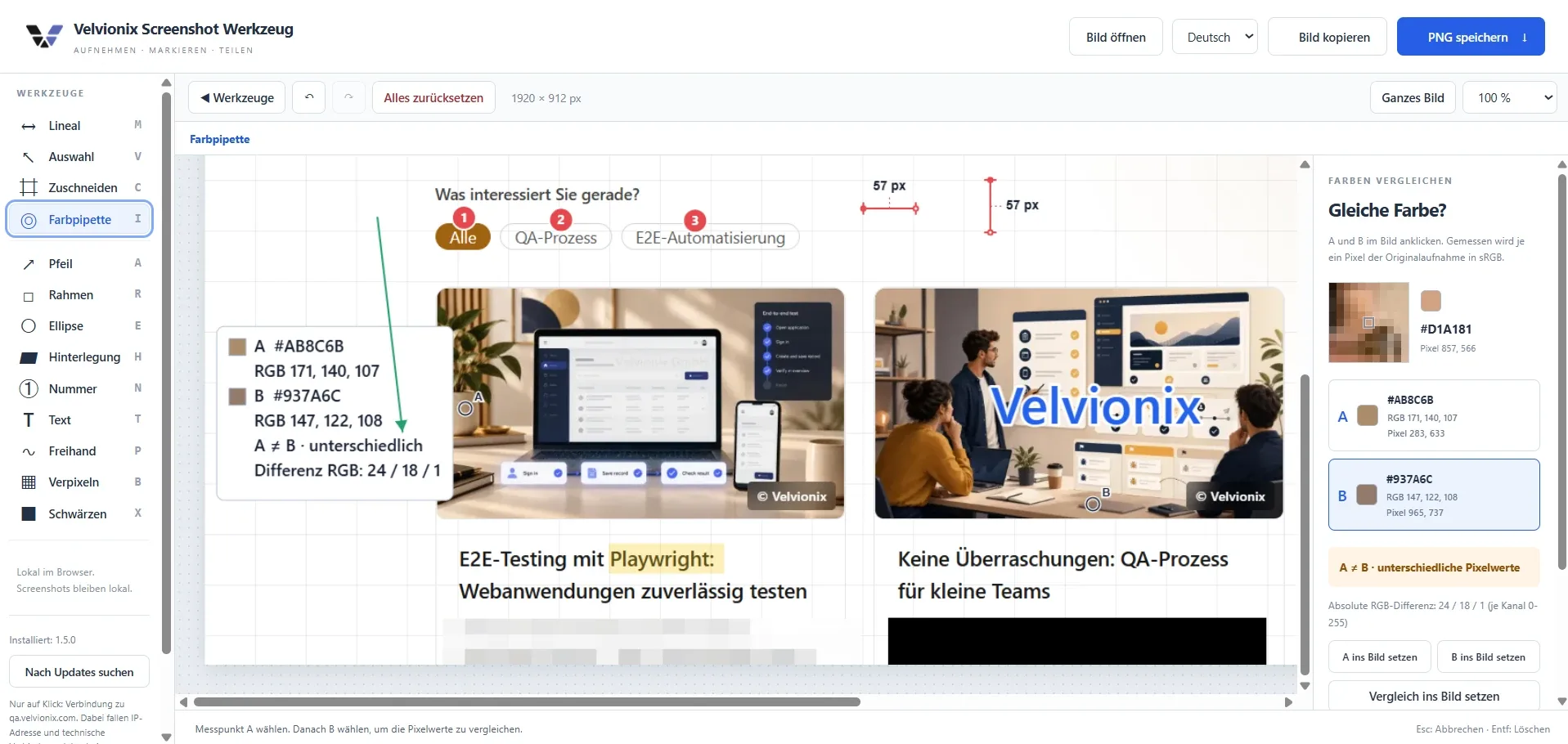
Velvionix Screenshot Tool editor with a captured web page: two rulers at 57 pixels, numbered notes, an arrow, and a color comparison of two pixels.
  • Free For personal and business use, with no subscription and no ads.
  • Local in your browser Captures are never uploaded.
  • No account No sign-up and no usage analytics.
  • English and German Starts in your browser language, switchable in the editor.

Features

Everything a good bug report needs.

A screenshot on its own rarely explains what is wrong. With a ruler, a color picker, and annotations, you show it right in the image, so development, design, and QA are talking about the same spot.

Measure distances in pixels

The ruler measures horizontally, vertically, or freely between two points. The dimension line and value sit in the image and stay in the exported PNG.

  • Several measurements for a side-by-side comparison
  • Independent of the editor zoom
  • Move the value and the line separately

Compare colors down to the pixel

The color picker samples two pixels and shows HEX, RGB, and the difference per channel. Place a single value or the whole comparison as a card next to the element.

  • A magnifier shows the sampled pixel
  • Copy the HEX value with one click
  • Use a sample as your drawing color
  • Capture and crop

    One click or Alt+Shift+S captures the visible area of the tab. Then crop it down to what matters.

  • Annotate and label

    Arrow, rectangle, ellipse, highlight, freehand, text, and numbered markers for step-by-step notes.

  • Hide sensitive content

    Redact covers an area completely. Pixelate works for less sensitive spots.

  • Edit your own images

    Open a PNG, JPEG, or WebP locally, for example a screenshot from a desktop app. Nothing is uploaded.

  • Share as PNG

    Save the file or copy it to the clipboard and paste it straight into a ticket, chat, or email.

  • Fix mistakes safely

    Undo, redo, and Reset all. Your editing state is saved locally as you work.

How it works

From finding to ticket in four steps.

Every step works with the mouse or with keyboard shortcuts.

  1. Capture

    Scroll the spot into view and click the icon. The editor opens with the capture in a new tab.

    AltShiftS

  2. Crop

    Drag a frame around the relevant area and confirm with "Apply" or Enter.

    C Enter

  3. Explain

    Measure, compare colors, annotate, and add labels. The settings for each tool appear above the image.

    M I A

  4. Share

    Check that confidential content is fully redacted. Then save the PNG or copy it right away.

    CtrlS CtrlC

In detail

Measure precisely, share safely.

What the readings mean and what to check before you pass an image on.

What the ruler measures

It measures image pixels of the capture, independent of the editor zoom. The start point is filled, the end point is hollow.

The values are not CSS pixels. Display scaling and browser zoom change the ratio. Edges are not detected automatically, so you set the points yourself.

What the color picker measures

It samples one sRGB pixel of the original capture, independent of annotations and zoom. That is not a CSS source value and not a measurement of your monitor.

Sample flat colors inside the area, not on smoothed edges, gradients, or shadows.

Hide confidential content properly

Use Redact for confidential text. Pixelated content can remain readable, and a colored highlight hides nothing.

The editor keeps the original locally for undo and the color picker. Share only the exported PNG, and check it first.

Open your own images

Use "Open image" to load a PNG, JPEG, or WebP into a new editor tab. Without a prior capture, right-click the icon and choose "Options" to reach the editor.

Limits: 25 MB, 24 million pixels, and 16,384 pixels per side. The original file is left unchanged.

Keyboard shortcuts

Letter keys work as long as you are not typing in a text field.

AltShiftS
Start a capture
V
Select
C
Crop
A
Arrow
R
Rectangle
E
Ellipse
H
Highlight
N
Number
T
Text
P
Freehand
M
Ruler
I
Color picker
B
Pixelate
X
Redact
CtrlZ
Undo
CtrlShiftZ or CtrlY
Redo
CtrlS
Save PNG
CtrlC
Copy image
Esc
Cancel action
Del
Delete selection

You can change the capture shortcut at chrome://extensions/shortcuts or edge://extensions/shortcuts.

Installation

Set up in a few minutes.

The tool is loaded as an unpacked extension, without a web store. You do not need any programming skills.

  1. Download and extract the ZIP

    Extract the whole file into a folder you will keep, for example in Documents.

    Download ZIP
  2. Open the extensions page

    Type the matching address into the address bar and press Enter.

    chrome://extensionsedge://extensions

  3. Turn on developer mode

    In Chrome the switch is at the top right, in Edge it is in the left sidebar.

  4. Load the unpacked extension

    Choose the folder that directly contains manifest.json, usually screenshot-werkzeug-1.5.0. If you only see another folder inside it, choose that inner folder.

  5. Pin it to the toolbar

    Open the puzzle icon next to the address bar and click the pin next to Velvionix Screenshot Tool. In Edge the option is called "Show in toolbar".

The full guide ships in the ZIP as GUIDE.txt, and in German as ANLEITUNG.txt.

Privacy

Your captures stay on your device.

Capturing and editing run entirely in your browser. The extension sends no image content to Velvionix.

What the extension does not do

  • Upload screenshots or image content
  • Ask for an account or personal details
  • Analyze your usage or send telemetry
  • Load external fonts or scripts
  • Check for updates in the background

A screenshot can itself contain personal data. The extension stores it only locally for editing.

Update check only when you click

Only when you click "Check for updates" does the extension request a version file from qa.velvionix.com. The version comparison happens on your device.

The hosting provider receives your IP address and connection data, because that is how a web request works. Cookies, image content, visited addresses, user identifiers, and the installed version are not sent.

Local data

The capture, page title, and editing state are kept in the extension storage, along with your language choice and whether the sidebar is collapsed. Closing the editor tab deletes that capture. After a browser crash, leftover data is cleaned up at the next start. Exported files and the clipboard are not cleared automatically.

These notes describe the extension. Visiting this page and downloading the file are regular website requests, covered by our privacy policy.

License

Free to use, at work too.

Velvionix Screenshot Tool is free, copyrighted software from Velvionix GmbH. The key rules at a glance:

Allowed

  • Personal and business use, including client projects
  • Installation on as many devices as you like
  • Sharing the unchanged ZIP file within your company
  • Linking to this download page

Not allowed

  • Modifying the software or using it as the basis for your own
  • Offering it under your own name or brand
  • Publishing it anywhere else, for example on download portals, other websites, or in stores
  • Selling, renting, or providing it for a fee

The tool is publicly available only from this page. For questions about the license, write to info[at]velvionix.com.

The full license terms ship in the ZIP file. You can also read them before downloading: Open LICENSE.txt. The German version is binding. The English translation is provided for information.

Questions and answers

Frequently asked questions about the screenshot tool

Is the screenshot tool really free?

Yes. You can use it for free, both personally and at work, including in companies and client projects. There is no subscription, no advertising, and no account. The details are in the license terms on this page.

Which browsers are supported?

Chromium-based desktop browsers such as Google Chrome and Microsoft Edge, version 109 or later. Firefox, Safari, and mobile browsers are not supported.

Why do I have to turn on developer mode?

The tool is provided directly from this page, not through a web store. Chrome and Edge only load such extensions in developer mode. The notice the browser may show about it is normal for this type of installation.

Which permissions does the extension need?

No content scripts run permanently on the sites you visit. The extension only needs these permissions:

  • Active tab: to capture the visible area after you click.
  • Clipboard write: so you can copy images and color values.
  • Access to qa.velvionix.com: for the version check you start yourself.
Can I capture a full page with scrolling?

No. The tool deliberately captures the visible area of the active tab, without browser toolbars and without automatic scrolling. Protected content, such as some videos, and browser policies can limit a capture.

Can I edit screenshots from other programs too?

Yes. Use "Open image" to load PNG, JPEG, or WebP files up to 25 MB into the editor, for example captures from Windows or a desktop app. The file is opened locally and not uploaded.

Does the tool work offline?

Yes, once the website has loaded. Capturing and editing need no internet connection. Only the manual update check and downloading a new version need a connection.

How do I update to a new version?

In the editor, click "Check for updates" at the bottom. If a new version is available, a link to this page appears. Updates are never installed automatically.

First export any captures you still need. Then replace the files in your existing folder with the contents of the new ZIP, click "Reload" on the extensions page, and close old editor tabs.

The shortcut or copying does not work. What can I do?

If Alt+Shift+S is already in use, set a different shortcut at chrome://extensions/shortcuts or edge://extensions/shortcuts.

If copying fails, click into the editor and try again. Alternatively, save the PNG and insert the file in the target program.

Where can I get help or report a bug?

A detailed guide ships in the ZIP as GUIDE.txt, and in German as ANLEITUNG.txt. Send questions and bug reports to info[at]velvionix.com.

Velvionix Screenshot Tool 1.5.0

Your next bug report shows exactly what you mean.

Download it for free, extract it, and load it in Chrome or Edge. No account and no subscription.

Official browser guides: Chrome: load an unpacked extension, Chrome: manage extensions, Edge: install locally